How bulk submission works
Instead of opening each report individually to send it to RF, the bulk submission feature lets facility admins select and submit many reports at once, then review and fix any issues — all from the same page. All users at a facility share the same view and submission state.
Select reports and send them to RF
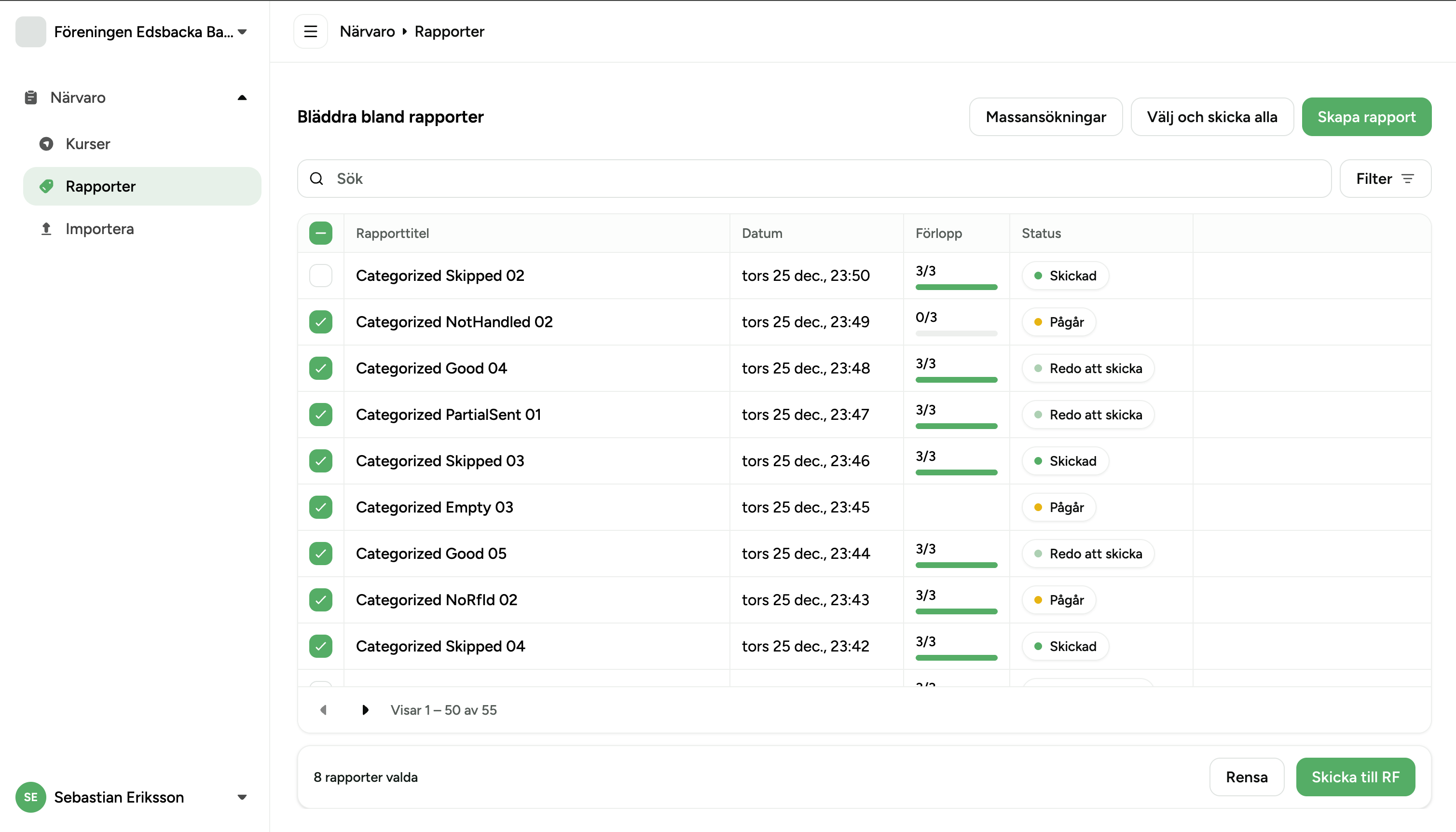
When the bulk submission feature is active, a checkbox column appears as the first column of the reports table. Each row can be selected individually, or the header checkbox selects all currently visible rows at once.
Once at least one row is checked, a selection footer bar appears at the bottom of the table showing the count of selected reports, a Clear button to deselect all, and a Send to RF button. Clicking Send to RF creates a new submission batch — a group of reports queued for delivery to RF in sequence.
You can repeat this as many times as needed. Each click of Send to RF creates a new batch and adds it to the submission queue. There is no limit on how many batches can be created, and a new batch can be started even while a previous one is still being processed.
Filter and send all visible ready-to-send reports
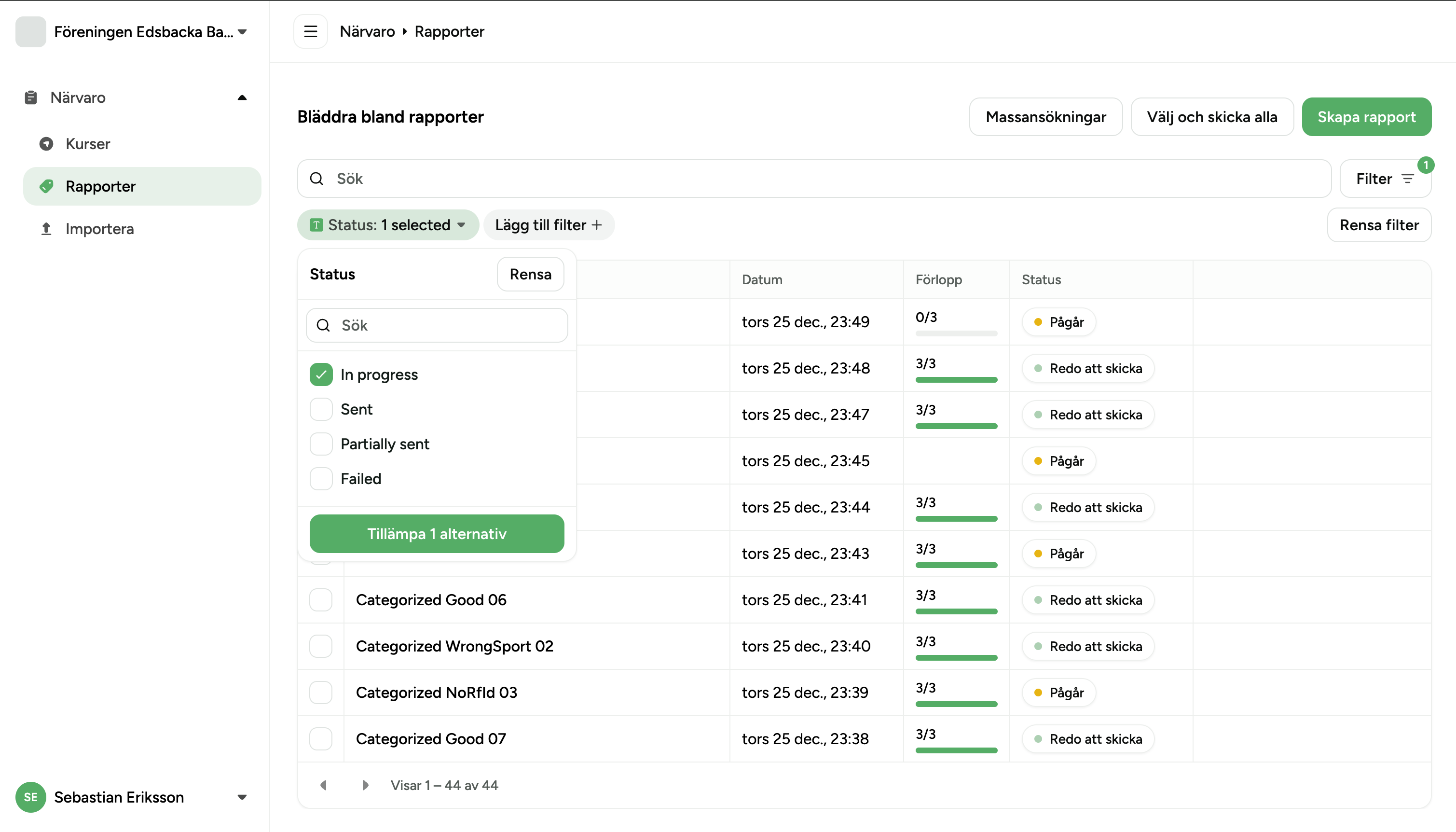
To quickly target only the reports that are ready, use the Status filter at the top of the table and select Ready to send. The table will show only those reports. Then use the header checkbox to select all visible rows at once and click Send to RF in the footer.
Only reports with status Ready to send are eligible to be sent to RF. Reports with other statuses — In progress, Failed, Sent, Partially sent — will not be processed by RF, as they either have missing information or have already been submitted. Filtering first ensures you are only queuing reports that are actually ready.
Send all unsent reports at once
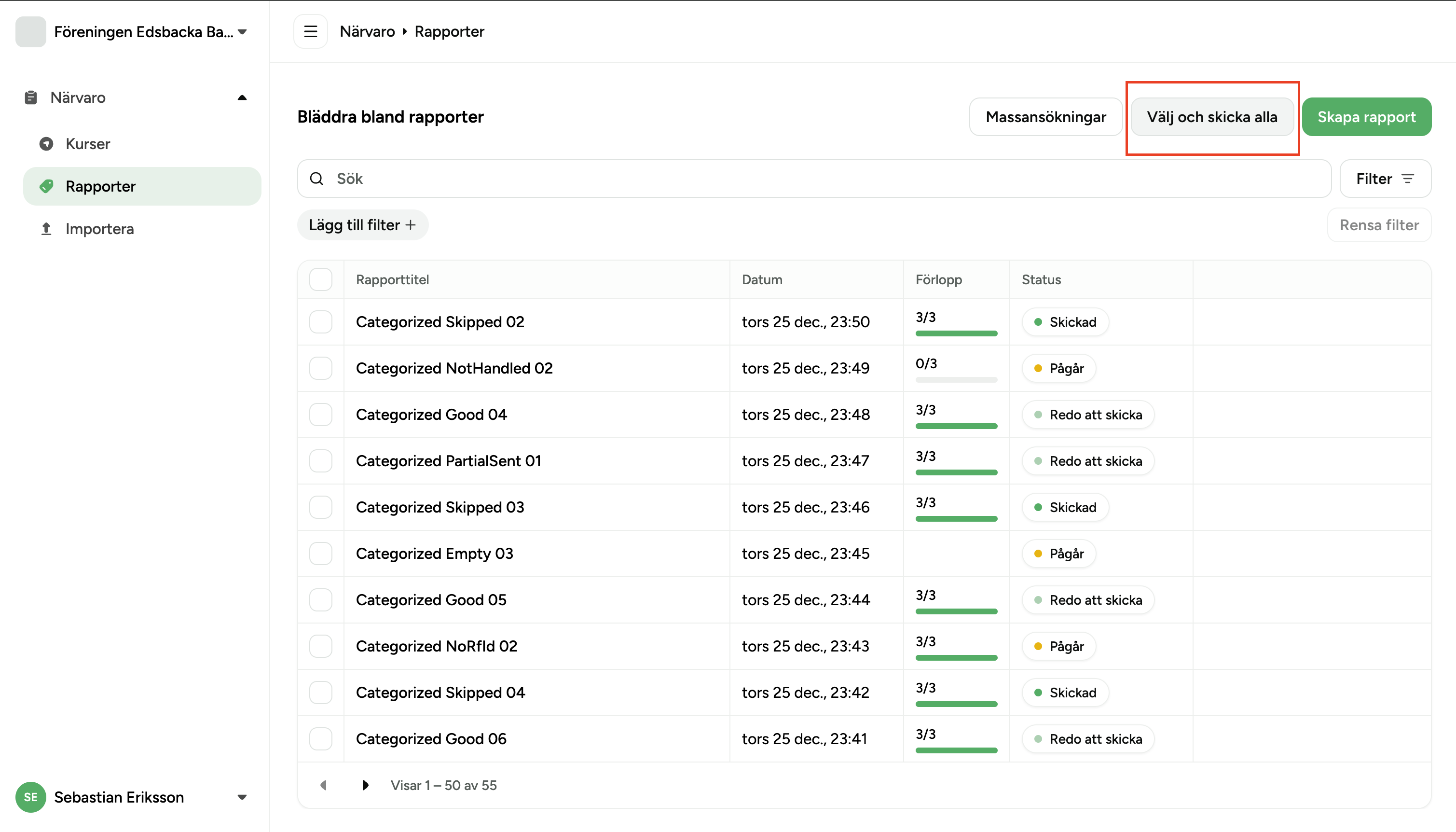
For a quick full submission without any filtering, use the "Select and send all" button in the toolbar at the top of the page. This button sends every Ready to send report for the facility to RF — across all pages — in a single action. You do not need to paginate through the table and manually select rows.
The server determines the full list of eligible reports at the time the button is pressed — no manual selection required.
Track submission progress
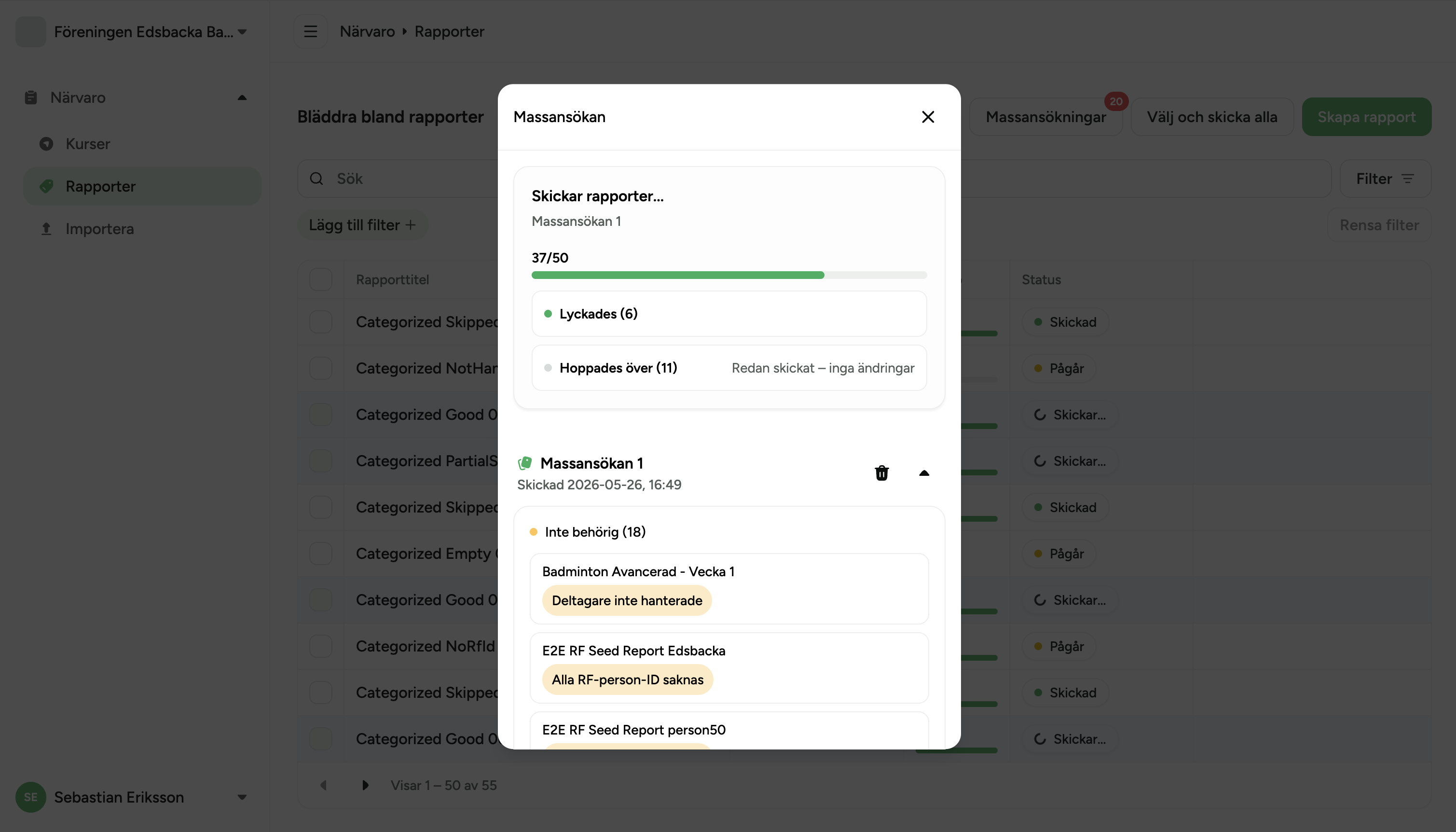
While a submission is running, the "Bulk submissions" toolbar button shows a live spinner and a label such as "Sending 12/47" — indicating how many reports have been processed out of the total in the current cycle. If the count is not yet known (immediately after pressing Send), it shows "Sending…".
The button also carries a red badge with a number when any reports require attention (e.g. failed, not eligible). This count reflects issues from the most recent submission activity and persists between page loads, so it is visible even after a full page refresh.
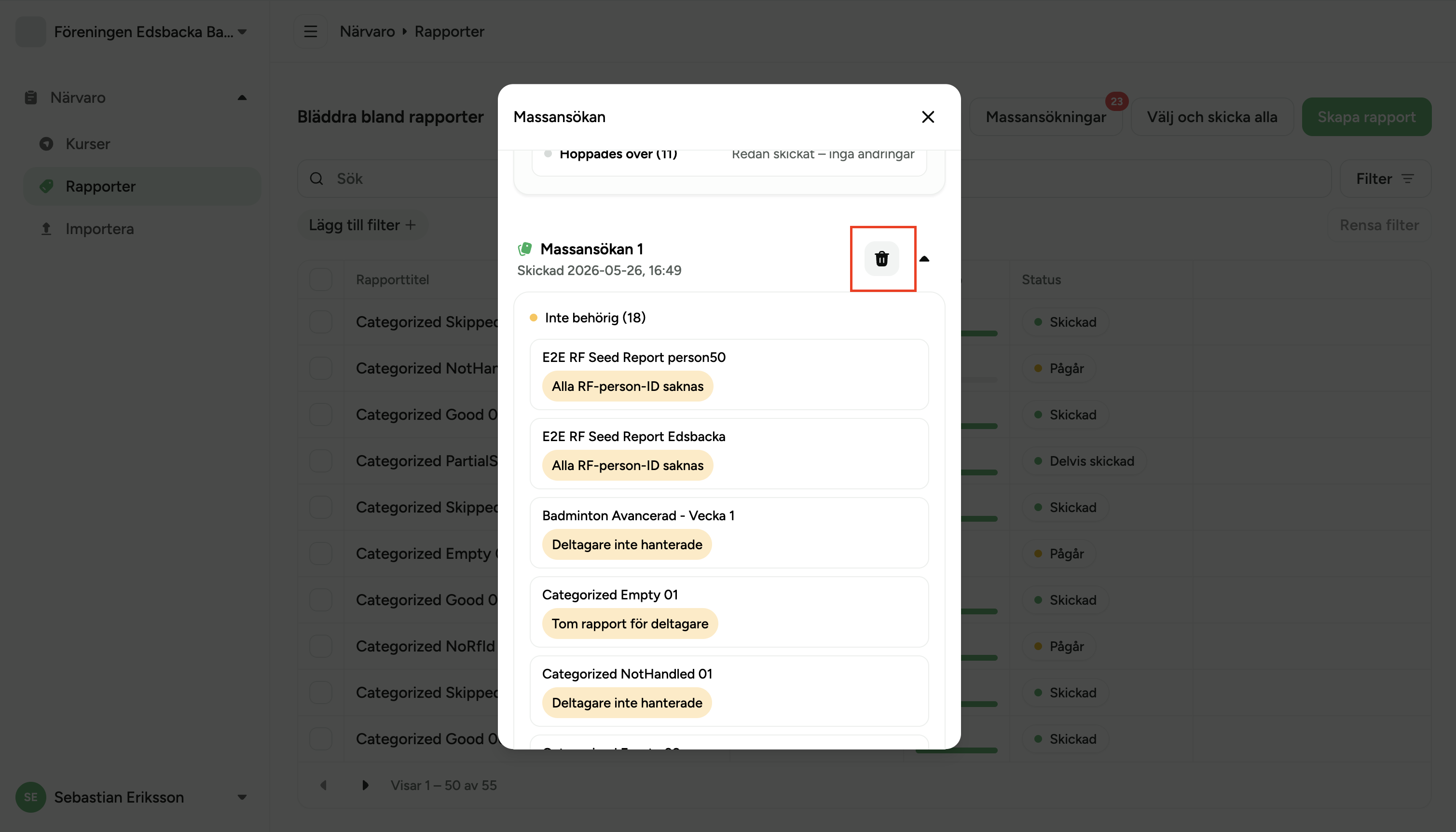
Click the "Bulk submissions" button to open the Bulk Submission dialog, which shows the full history and live details of all batches.
Review reports that need attention
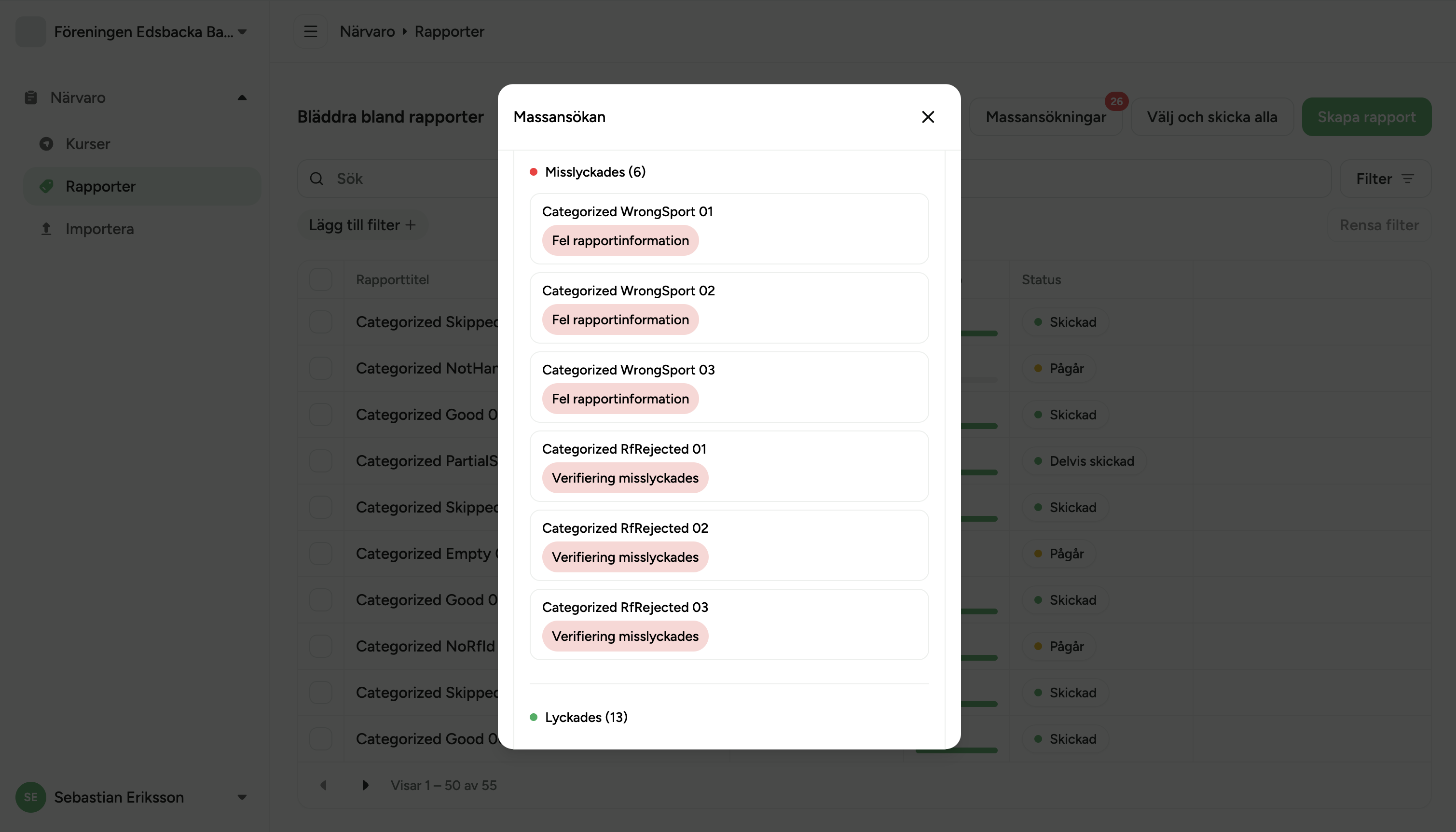
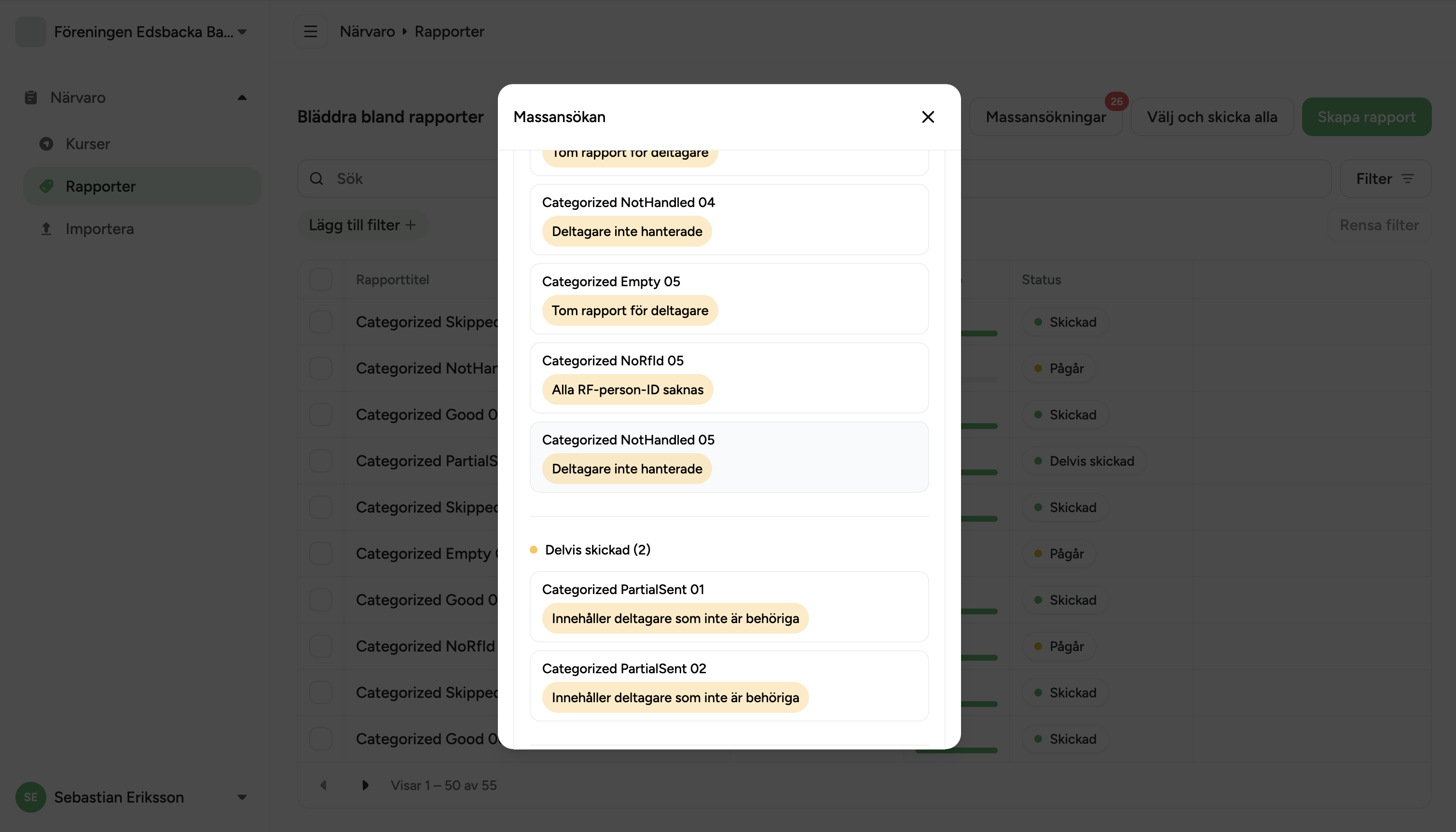
The Bulk Submission dialog lists every submission batch, newest first. Each batch card can be expanded to reveal individual reports grouped into three categories. Only non-empty categories are shown:
- No participants — the report has no participants added at all. Participants must be added before the report can be sent.
- Participants not handled — the report has participants, but at least one has not been marked as present or absent. All attendance must be set before sending.
- All RF person IDs missing — every participant in the report lacks an RF membership number. At least one participant must have a valid RF ID for the report to proceed.
To complete the submission for those participants, their RF IDs must be assigned in Green Admin, and then the report must be marked as ready and re-sent.
- Verification failed — RF validated each participant and rejected one or more of them (e.g. duplicate RF person ID, person not found in RF's register).
- Wrong report info — RF rejected the report's metadata (e.g. the sport is not connected to the facility's RF organisation, invalid activity type or date).
- System error — A transient network or infrastructure error occurred when contacting RF (e.g. RF was temporarily unavailable). The system automatically marks these reports as ready to re-send.
Fix issues and re-send
Clicking any report entry in the batch card opens a specific fix dialog. A back arrow returns to the Bulk Submission dialog without losing progress. Each fix dialog is tailored to the issue:
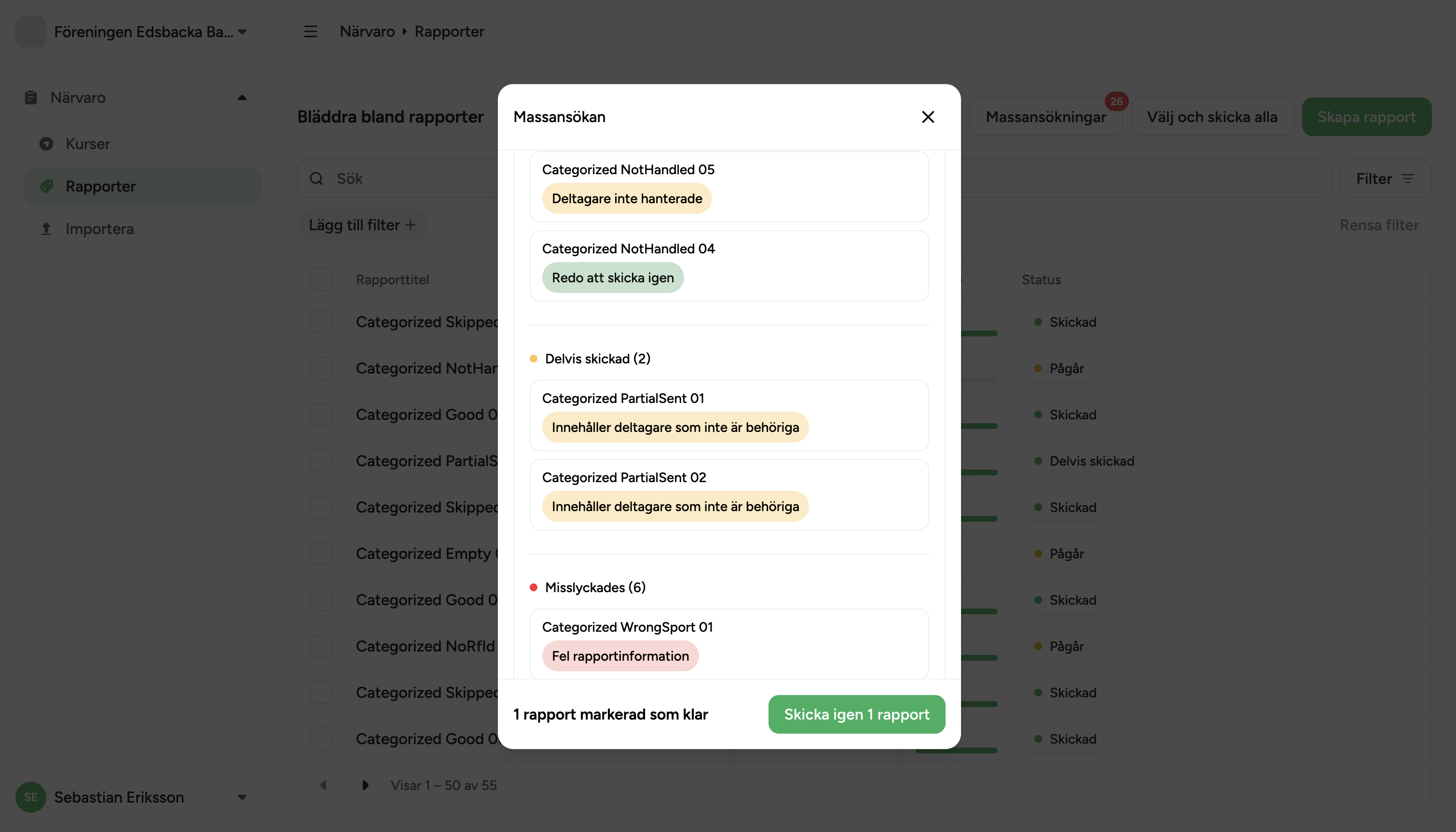
Once one or more reports have been fixed and marked as ready, a sticky footer appears at the bottom of the Bulk Submission dialog: "N reports marked ready · Re-send N reports". Clicking this fires a new submission batch with only those reports, starting the cycle again.
Shared view across all facility users
All users with access to the facility share the same submission state. When one user sends reports, the toolbar button updates for every other user viewing the same page — the spinner, progress count, and error badge all reflect the live state.
This means multiple staff members can monitor the same submission simultaneously, or different users can fix different issues in parallel without interfering with each other. There is one active submission cycle per facility at a time, shared by everyone.
Error reference
Quick reference for all error types, their root cause, and the correct resolution path.
| Label in dialog | Category | Root cause | How to fix |
|---|---|---|---|
| No participants | Not eligible | No participants have been added to the report | Open the fix dialog and add participants, then mark attendance |
| Participants not handled | Not eligible | At least one participant has no attendance value (neither present nor absent) | Open the fix dialog and mark all participants present or absent |
| All RF IDs missing | Not eligible | None of the participants have an RF membership number | Assign RF IDs in Green Admin for affected participants, then "Mark as ready" |
| Partially sent | Partially sent | RF accepted the report but skipped participants without RF IDs | Assign RF IDs in Green Admin for the missing participants, then "Mark as ready" |
| Verification failed | Failed | RF validated participants and rejected one or more (e.g. duplicate RF ID, person not found) | Review the RF error message, fix or remove the affected participants, then "Mark as ready" |
| Wrong report info | Failed | RF rejected the report's metadata (sport not connected to RF, invalid activity type or date) | Edit the report info fields in the fix dialog and click "Mark as ready" |
| System error | Failed | Transient network or infrastructure error when contacting RF | Usually auto-resolved — report appears in the re-send footer automatically. Otherwise click "Mark as ready" |